

Physio3D Realtime · iPhone & iPad

Your 3D trainer, right in your room.

See 3D exercises from your own angle.

Download on the App Store: Physio3D RealtimeFree · iOS/iPadOS 26+
Watch the films

5.0 · 10 ratings on the German App Store

Realtime in action

From your space to your plan.

See movements from different angles. Plan your sessions and keep track of what you’ve trained.

Space

See exercises in 3D

View a movement from the side or the front. Use AR to place the life-size 3D trainer in your room.

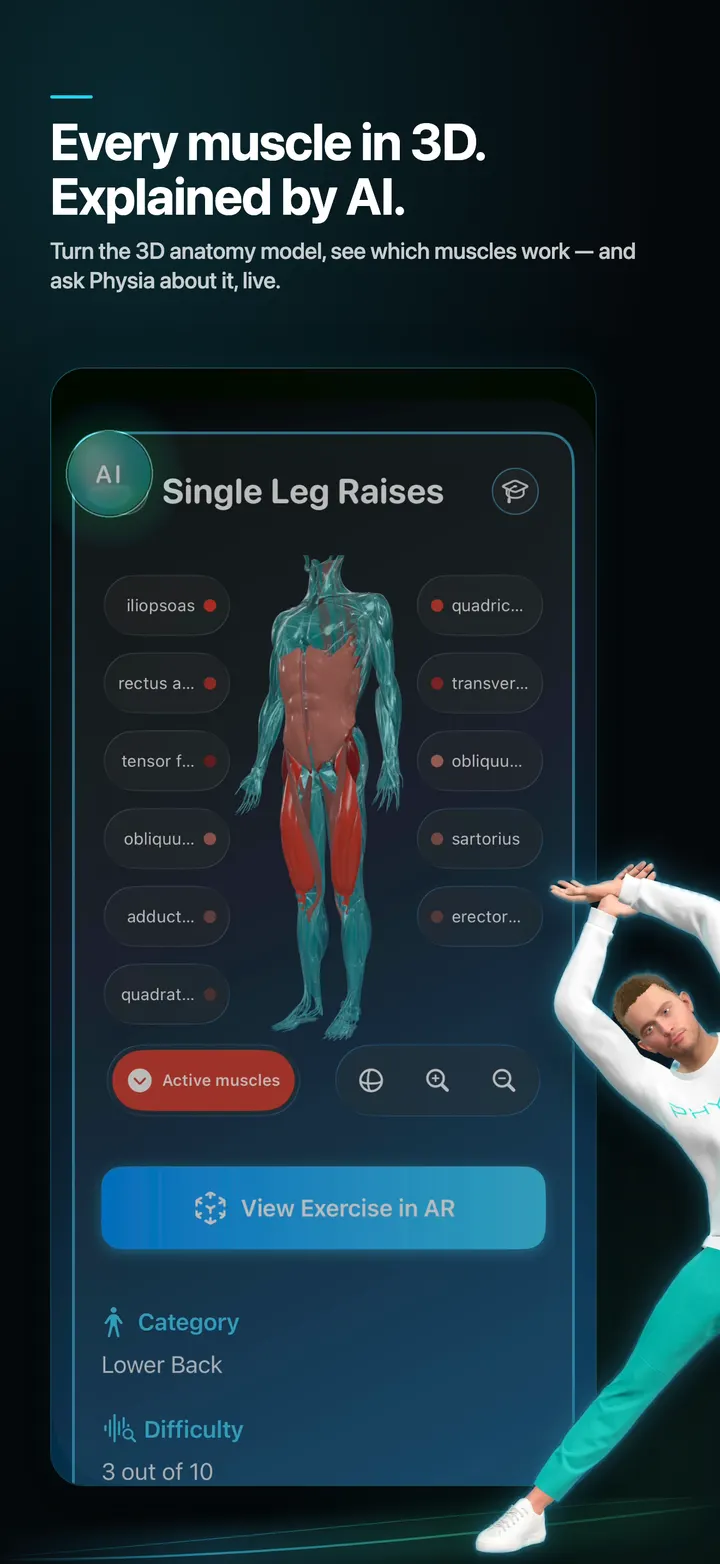
Rotate the anatomy model to see which muscles are involved in the exercise.

Read what happens in the film

The 3D trainer demonstrates movements standing, seated and lying down. The preview shows active muscles on a model, an example of a Physia conversation and Siri starting a plan. It ends with the activity tracker.
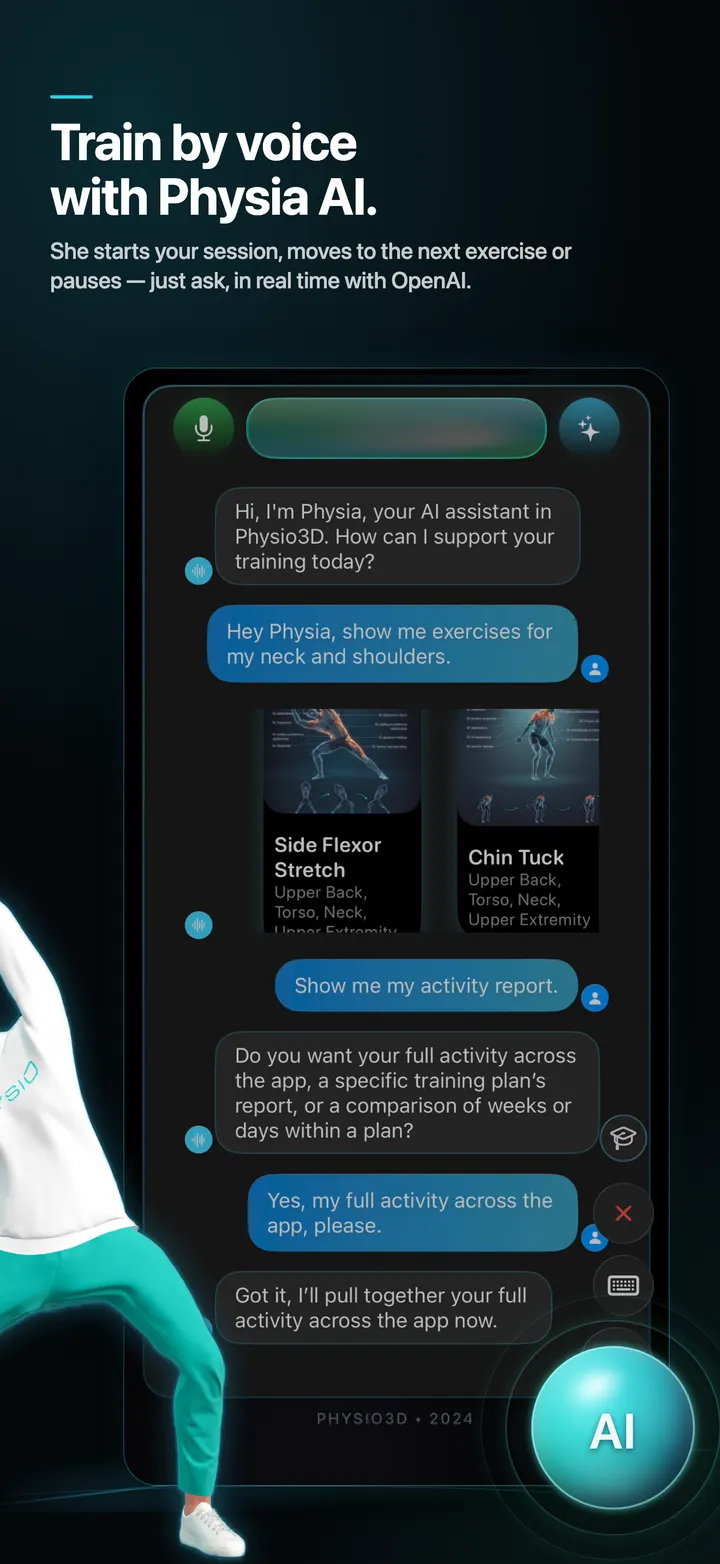
Voice

From conversation to training plan

Tell Physia what you want to work on. It can suggest exercises for a supportive training plan.

Physia is optional. It needs internet access and your own OpenAI API key. OpenAI usage charges may apply.

Read what happens in the film

See someone describe a training goal, save a supportive plan, change the days for week two and open a guided tour. Training then starts in AR.

Plan

Exchange a training plan as a PDF

Share your training plan as a PDF with your physiotherapist or trainer.

Read what happens in the film

The film opens with a compatible plan PDF. It shows how to edit exercises and sets, save a note, view an exercise in AR and share a PDF with the plan and recorded activity.

10 original screenshots · 7 scenes

A panorama from the app.

Use the arrow keys to move between scenes.

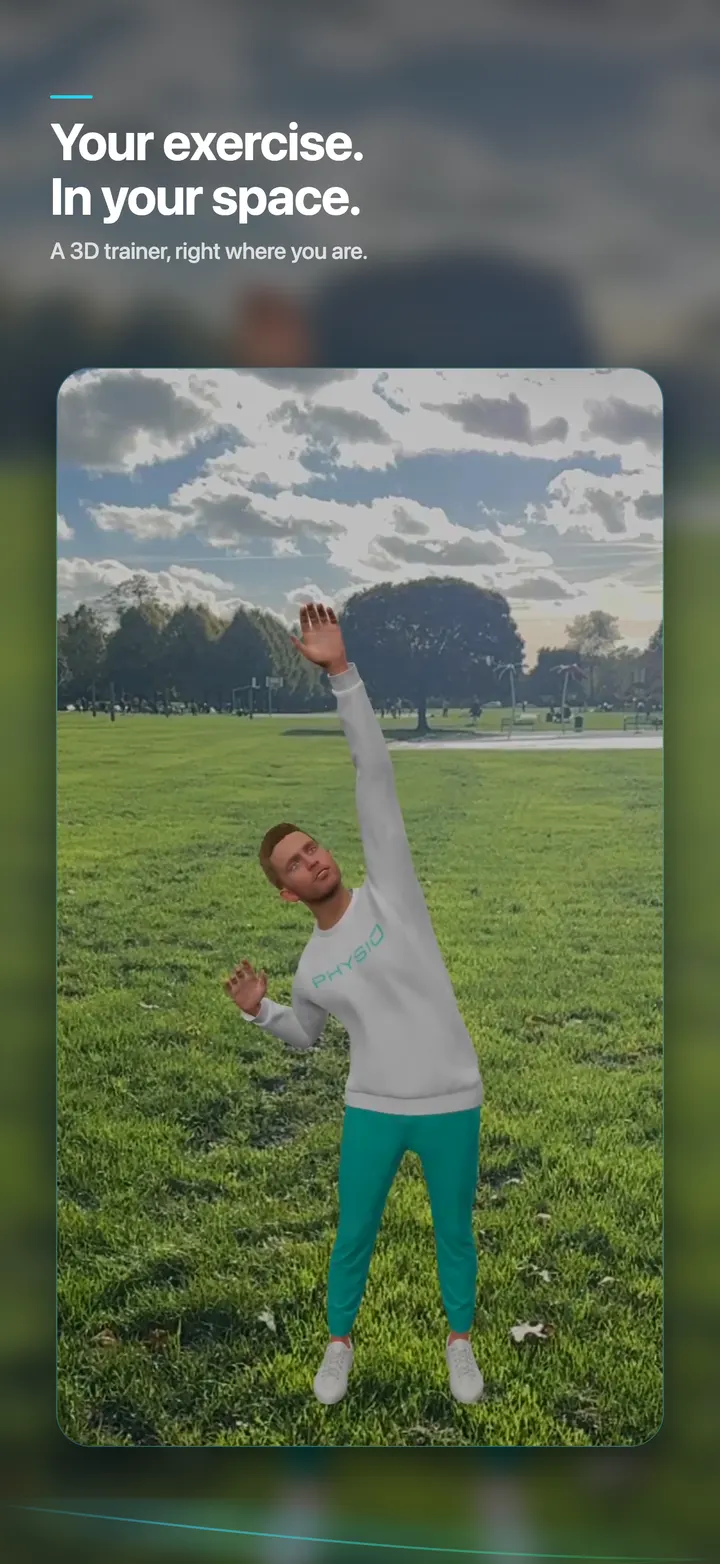
  1. 3D trainer demonstrates a side bend on grass in a park.

    Movement in AR

  2. The anatomy view for Single Leg Raises highlights active muscles on a 3D model.The Physia chat shows two suggested exercises and a question about the activity report.

    Anatomy and Physia

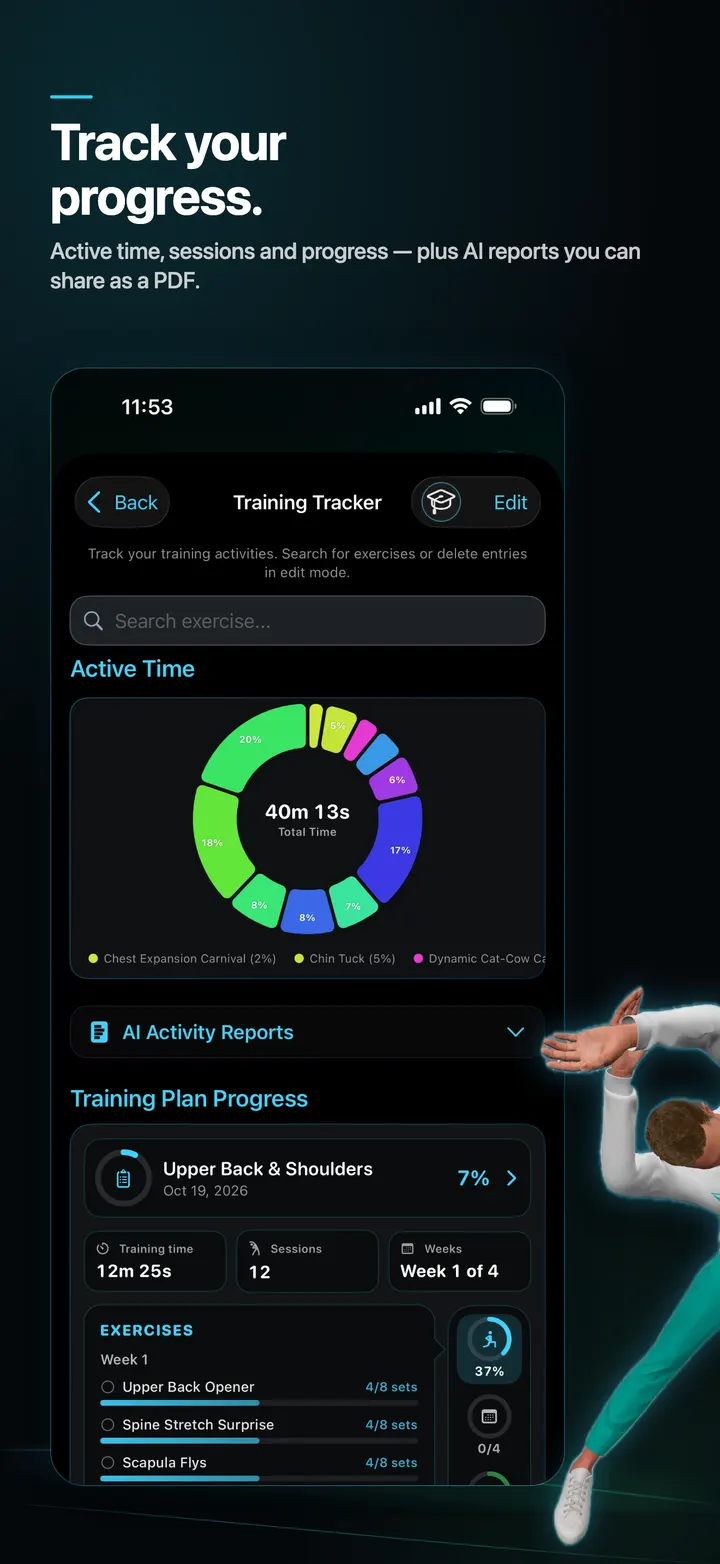
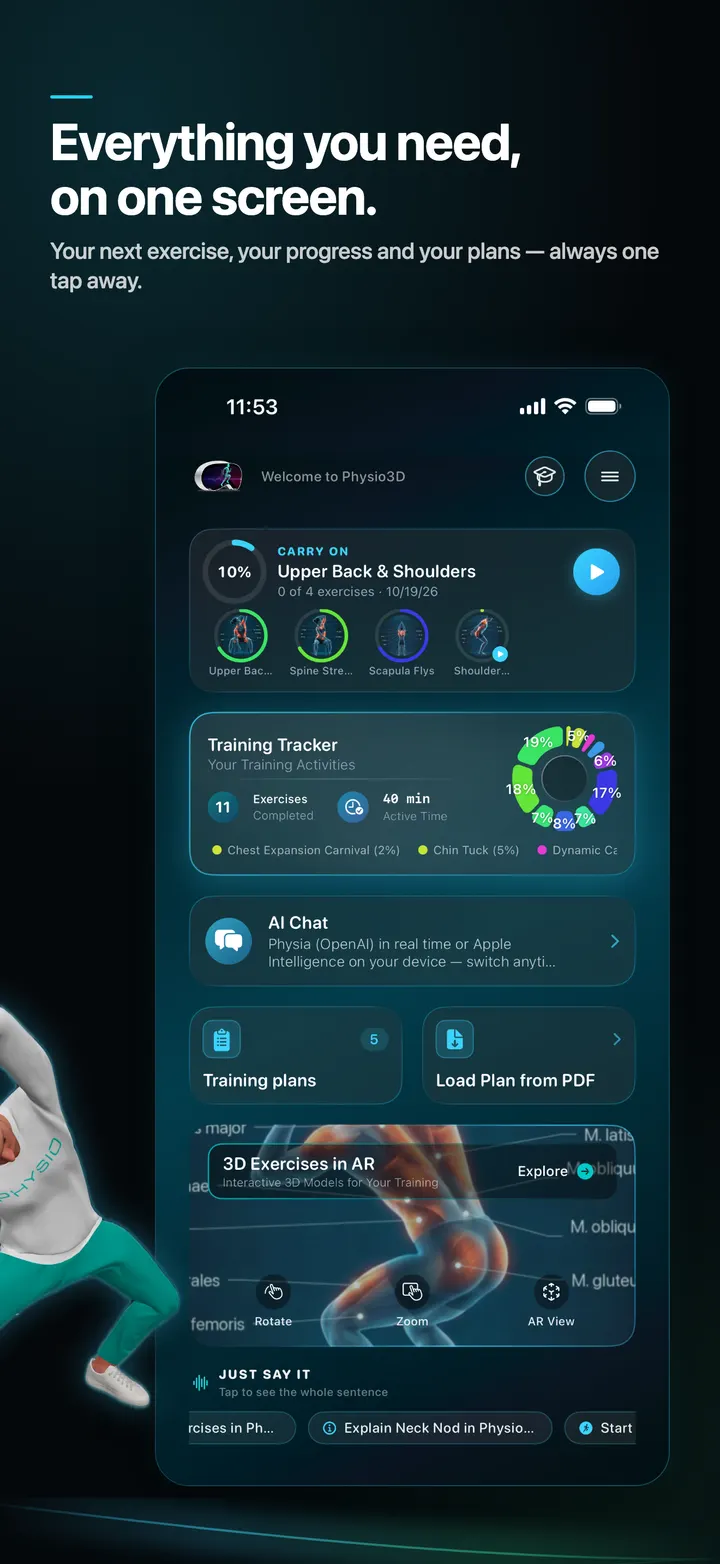
  3. The Training Tracker shows active time by body region and progress for one plan.The home screen shows recent exercises, the Training Tracker and saved plans.

    Activity and home

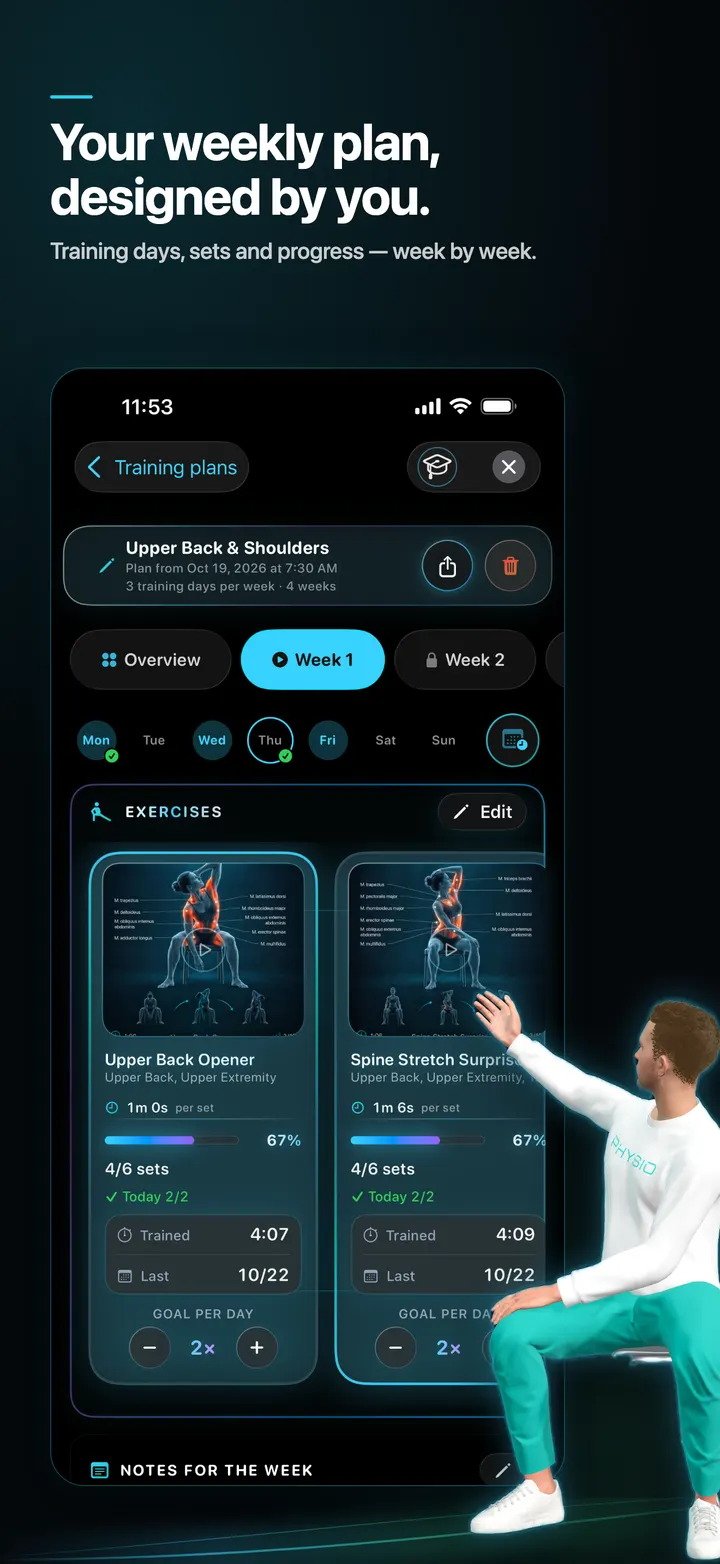
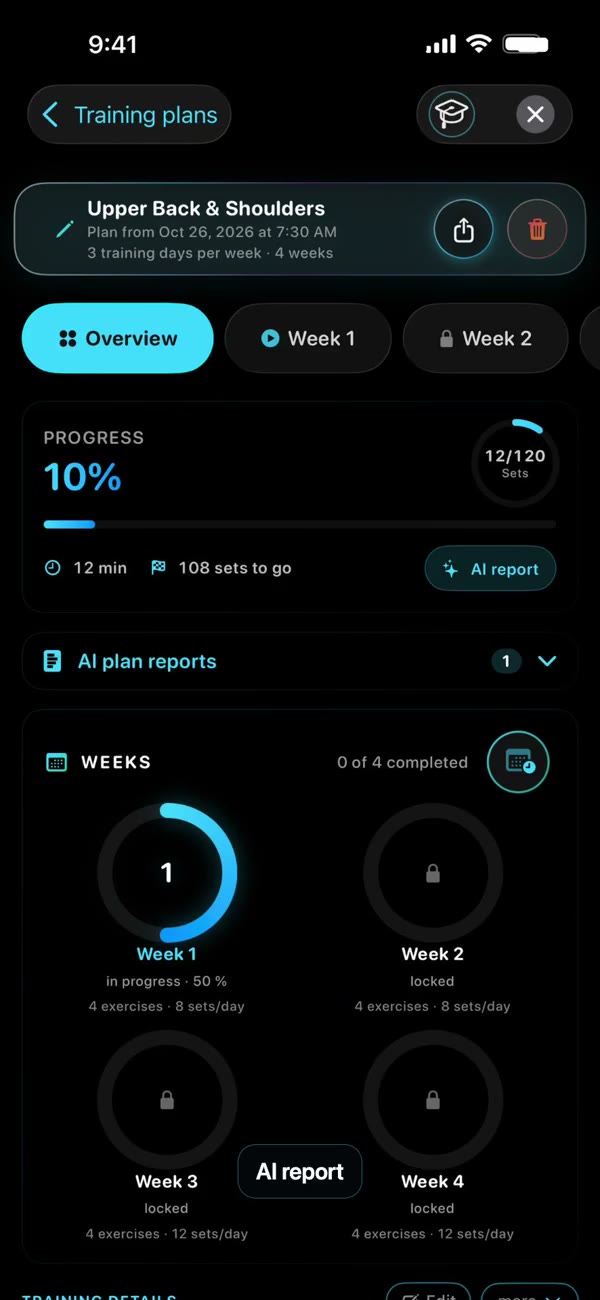
  4. Week one of a training plan shows training days, exercise cards and progress.

    Your weekly plan

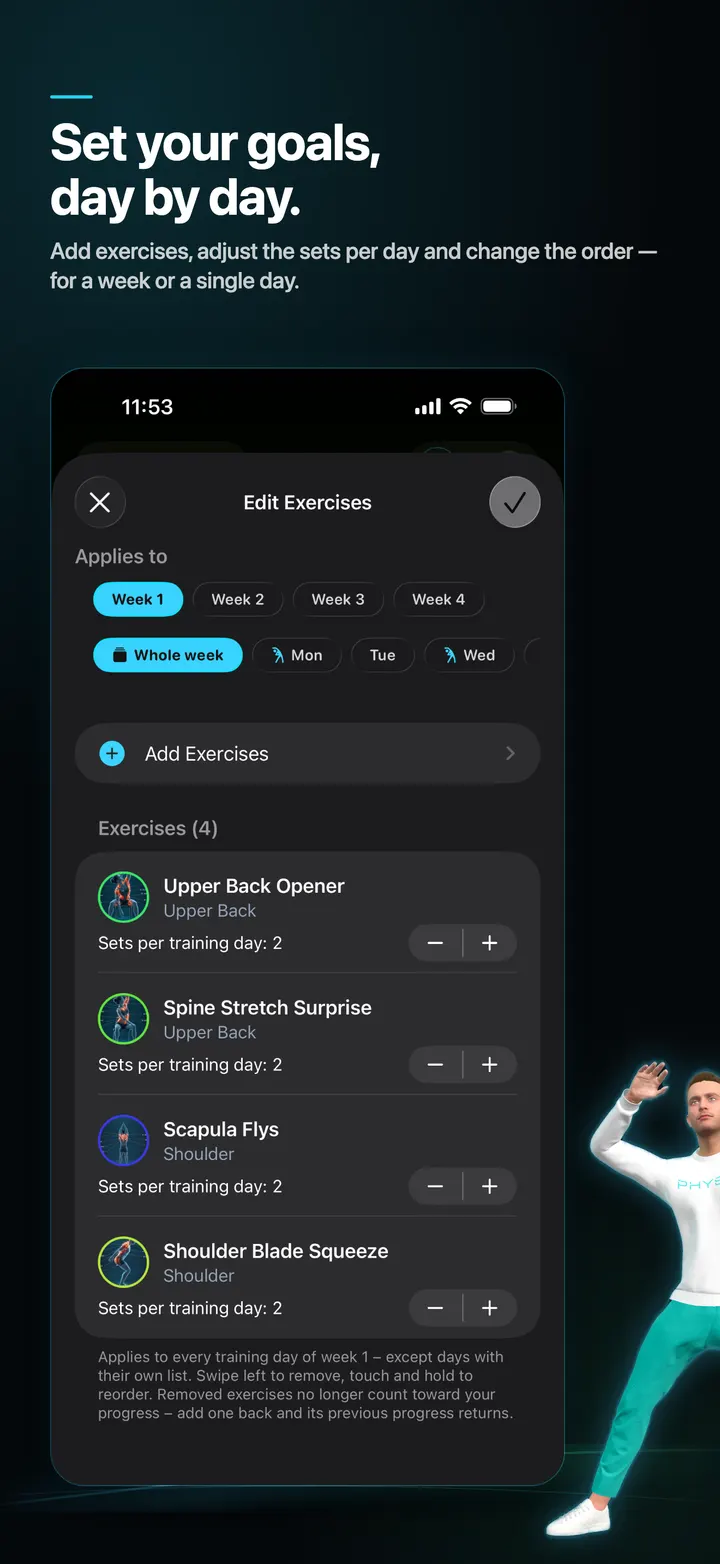
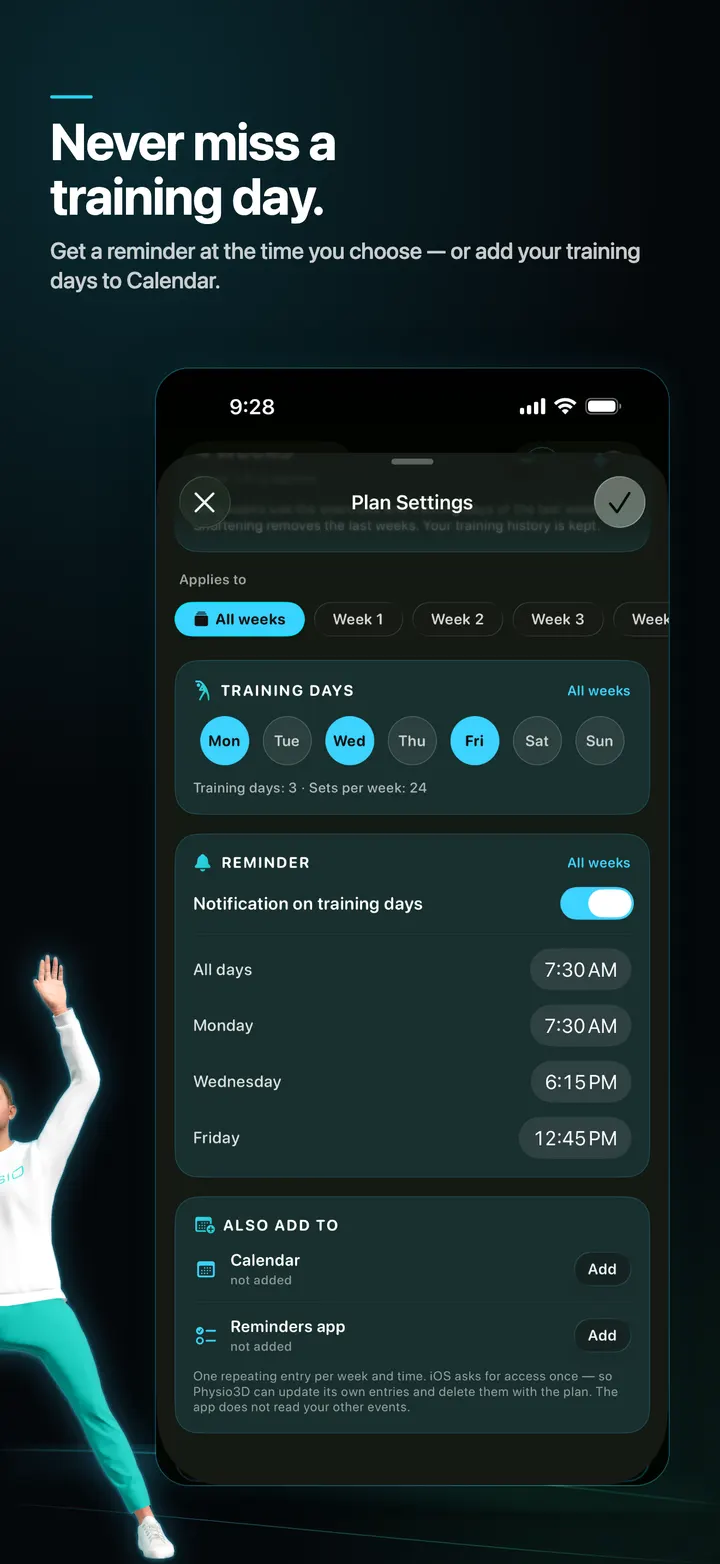
  5. The editor has one week selected and lists exercises with controls for the number of sets.Plan settings show selected training days and reminder times.

    Editing and reminders

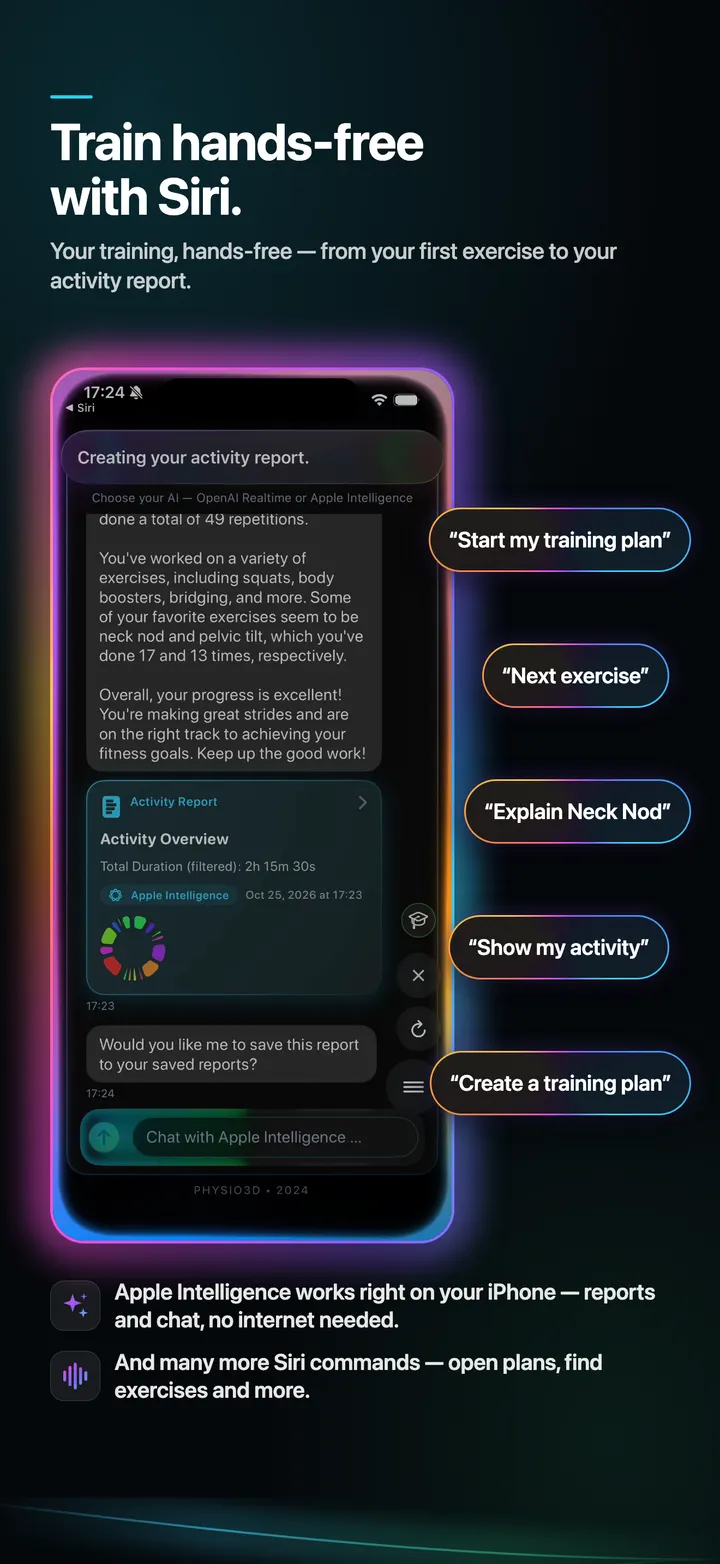
  6. Example Siri commands for plans and exercises appear beside an activity report.

    Siri and Shortcuts

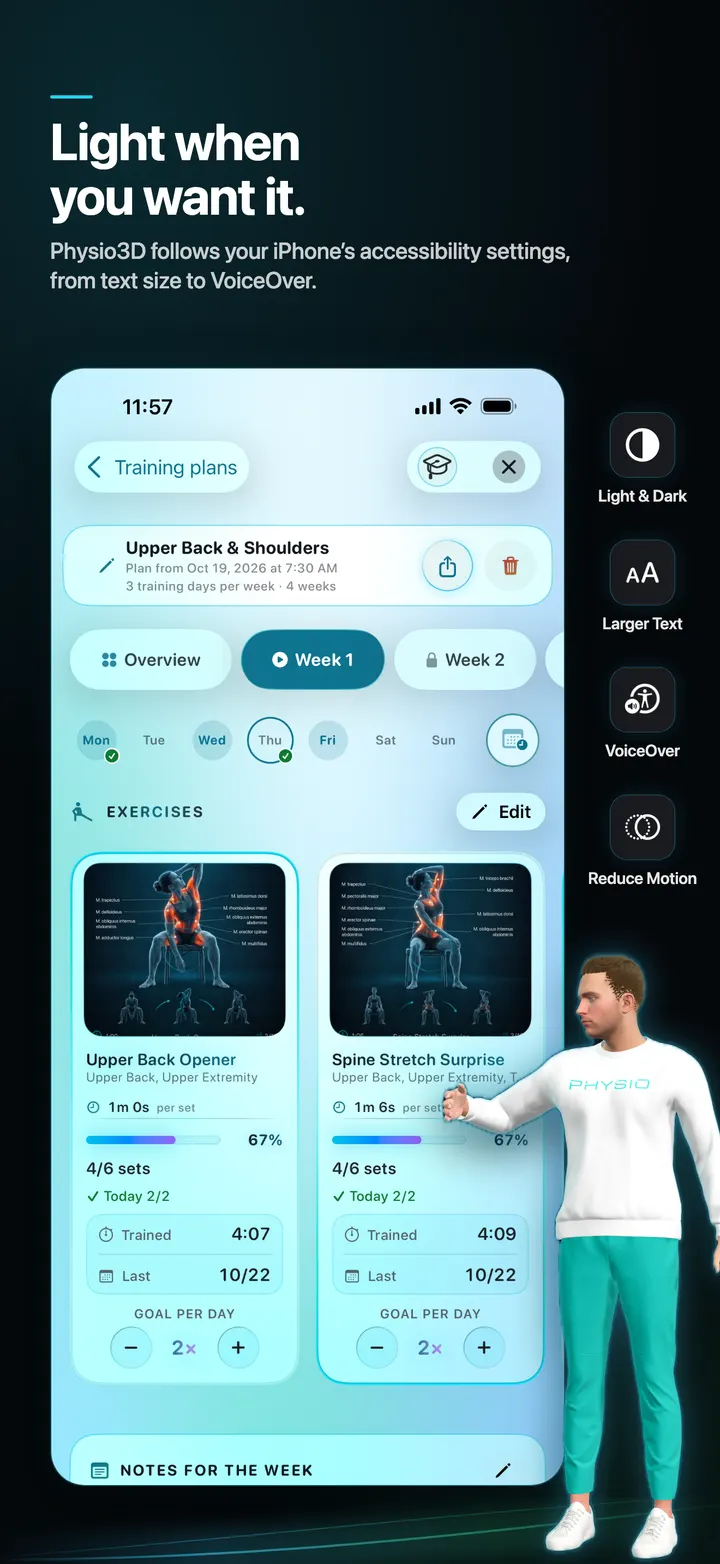
  7. The weekly plan in Light Mode beside symbols for larger text, VoiceOver and reduced motion.

    Display and accessibility

Physia · Siri · Apple Intelligence

Your voice
controls the exercise.

Keep the conversation going, open your plan with Siri or use on-device AI. See how the app responds.

Physia · OpenAI

Keep talking.Keep moving.

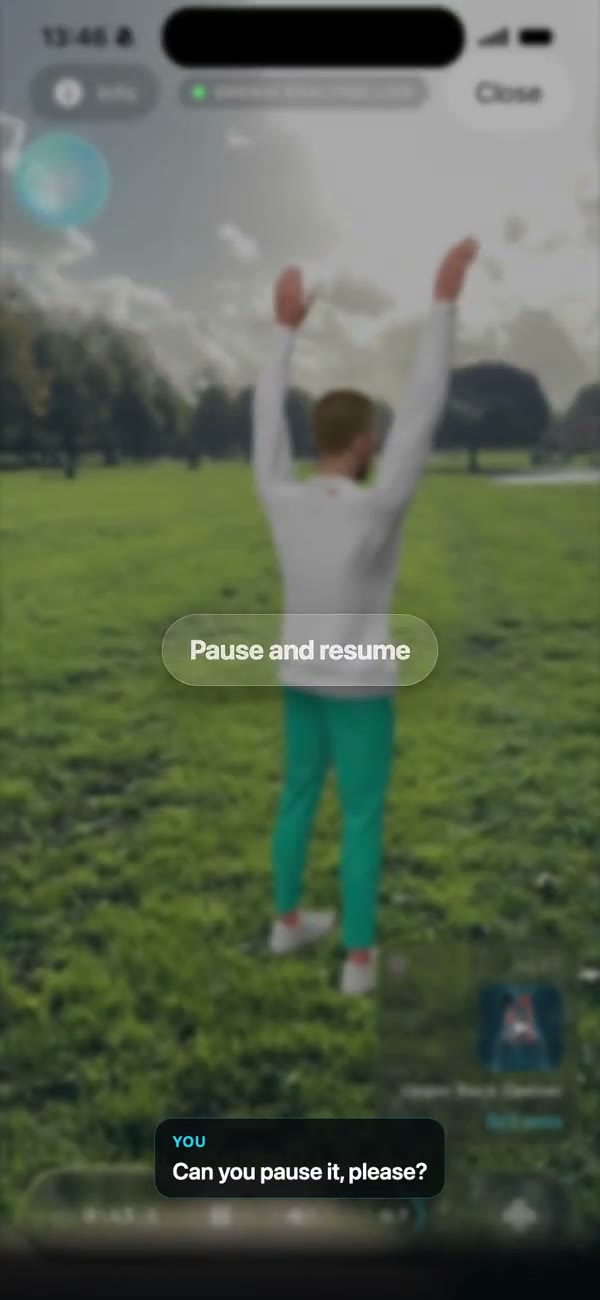
Say “Pause”, “Resume” or “Next exercise”. Physia responds mid-workout.

A real-time conversation with Physia, while you view the movement in AR.

Next exercise
Pause & resume
Start your plan

Siri · Shortcuts

Start trainingwith Siri.

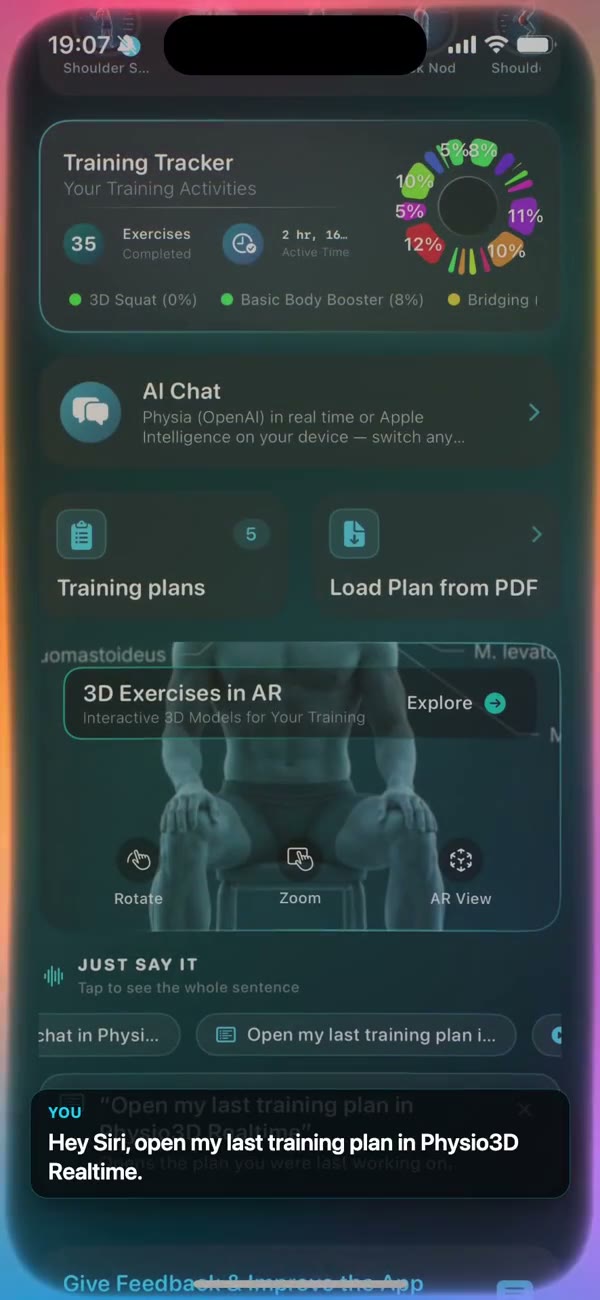
Ask Siri to open your latest training plan or start the 3D trainer in AR. You can also ask for an exercise explanation, right from the app.

Open a plan. Start training. Understand a movement.

Don’t know the exercise name?

Say “Explain an exercise in Physio3D”. Siri asks for the body region and offers a list to choose from. The film shows a direct request using the exercise name.

Start training
Open a plan
Explain an exercise

Apple Intelligence

Your questions.On your device.

Use the on-device chat to find exercises, open your plan or ask about your activity. Apple Intelligence can also summarize your recorded training sessions in a report.

The on-device AI works locally. This is the text chat, separate from the real-time conversation with Physia.

On-device chat
Plan report
More about the assistants

Physia with OpenAI is optional and needs internet access and your own OpenAI API key. OpenAI usage charges may apply. On-device Apple Intelligence needs a compatible device with iOS/iPadOS 26 and the model enabled and available. Siri and Shortcuts availability depends on language and region.

Try it yourself

Quick guides for Realtime

Watch each guide or read the steps below it. The videos start muted. You can turn on sound in the player.

Position the 3D trainer
  1. Drag with one finger to move the 3D trainer.
  2. Use two fingers to rotate it, or spread them to zoom in.
  3. In AR, you can also use the directional pad.
Edit a training plan
  1. Open a plan and tap Edit.
  2. Choose Add Exercises and search for an exercise.
  3. Set the number of sets for each training day and save the change.
Share an activity report
  1. Open the activity report.
  2. Tap Share.
  3. Choose how you want to share the PDF.

Features

Everything at a glance

  • AR trainer in your own room

    Your trainer stands life-size in your living room: place the 3D exercise via AR and see every movement right in front of you.

  • Training plans by AI

    Talk or type to Physia: it builds and adjusts your training plan as you talk. With Apple Intelligence you can build plans offline, right on your device.

  • Hands-free voice control

    “Pause the exercise”, “Next exercise” — you control your training mid-movement, without touching your iPhone.

  • Activity reports

    The app logs the duration of your AR exercises and gives you overviews and statistics. On compatible devices, Apple Intelligence can summarize your activity.

  • Siri and Spotlight

    Open your latest training plan, start your session, pause it or move to the next exercise, with Siri and without opening the app first. Your exercises also appear in Spotlight search.

  • Progress at a glance

    Training time, consistency, and the body regions you’ve trained — as clear charts, right in the app.

  • Share your training plan as a PDF.

    Import compatible plan PDFs or export plans and reports to share them with your physio, your trainer or friends.

Frequently asked questions

Frequently asked questions about Physio3D Realtime

What is Physio3D Realtime?

With Physio3D Realtime, you can view 3D exercises in your space, plan your training and track your activity on iPhone and iPad. Physia AI (OpenAI) offers optional voice assistance.

Does Physio3D Realtime work offline, too?

You can use AR exercises, browse the library, open saved plans and review your activity offline. The optional Physia voice assistant requires internet access and your own OpenAI API key.

How are Physia and Apple Intelligence different?

Talk to Physia in real time and control supported actions in the app. Apple Intelligence runs on your device, without internet and without an OpenAI key: it shows your activity report, builds training plans, finds exercises and starts them. It needs a compatible device with iOS or iPadOS 26 and Apple Intelligence turned on.

Does the app replace my physical therapy?

No. Physio3D is a supportive training tool that complements your treatment — it does not diagnose and does not replace medical or therapeutic advice. You can use it to revisit exercises between appointments.

How much does the app cost?

Physio3D Realtime is free on the App Store. If you choose to use Physia with your own OpenAI key, OpenAI usage charges may apply.

For iPhone and iPad

Your space. Your next step.

Download Physio3D Realtime free on the App Store and explore your first exercises in 3D.

Already using Physio3D Realtime? Your experience helps others choose an app.

Review on the App Store
Scan with iPhone or iPad

Write to us.

Questions about our apps, partnerships, or Physia? We’d love to hear from you.

* Required fields

Or email us directly